

Login issues
If you’re stuck at sign-in, don’t worry, most problems are quick to fix. Start with the steps below. If you still can’t log in, scroll to Still having trouble? and we’ll help.
1) “Your system clock is out of sync”
OIDC (our secure login) checks timestamps. If your device’s clock is even slightly wrong, sign-in can fail.
Quick fix (all devices)
- Turn automatic date & time on.
- Make sure your time zone is correct.
- Click/tap Sync now (if available), then try signing in again.
Windows 11 / Windows 10
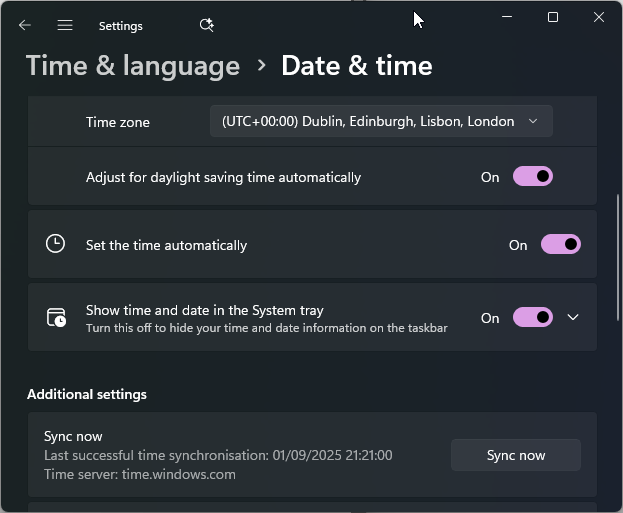
-
Settings → Time & language → Date & time
- Turn on Set time automatically and Set time zone automatically.
- Click Sync now under Additional settings (Windows 11) or Synchronize your clock (Windows 10).
-
Optional (advanced):
- Open Command Prompt as Admin and run:
w32tm /resync - If you’re on a work PC, your time comes from the domain controller. If it won’t sync, contact IT.
- Open Command Prompt as Admin and run:
macOS (Ventura or later; Monterey similar)
-
System Settings → General → Date & Time
- Turn on Set time and date automatically and Set time zone automatically.
- If options are locked, click the 🔒 to allow changes.
-
Optional (advanced, Terminal):
sudo systemsetup -setusingnetworktime onsudo systemsetup -setnetworktimeserver time.apple.com
iPhone / iPad (iOS & iPadOS)
-
Settings → General → Date & Time
- Turn on Set Automatically.
- Check Time Zone is correct.
Android (steps vary by device)
-
Settings → System → Date & time (or General management → Date and time)
- Turn on Set time automatically / Use network-provided time.
- Turn on Use network-provided time zone (or set your time zone manually).
ChromeOS
-
Click the time (bottom-right) → Settings → Advanced → Date and time
- Turn on Set automatically.
- Turn on Automatic time zone (or pick your time zone).
Linux (Ubuntu, Fedora, Debian, etc.)
- Most modern distros use systemd-timesyncd or chrony.
- Quick Terminal check:
timedatectl status - Enable automatic sync:
sudo timedatectl set-ntp true - If your distro uses chrony, ensure it’s running:
sudo systemctl enable --now chronyd
If the clock keeps drifting
- Restart your device and router (if on a home network).
- Ensure your firewall/VPN isn’t blocking time sync (UDP port 123/NTP).
- Corporate/managed devices: your organization may enforce time sources: ask IT to verify NTP/domain time sync.
2) Browser & cookie issues
OIDC needs cookies and modern browser features.
- Enable cookies (and don’t block third-party cookies for our domain).
- Clear cache & cookies, or try a private/incognito window.
- Update to the latest Chrome, Edge, Firefox, or Safari.
- Disable aggressive extensions (ad-blockers, privacy tools) for our site.
3) Multiple accounts
Using the wrong profile can cause loops or errors.
- Sign out of other accounts in your browser.
- Close all browser windows, reopen, and sign in with the right account.
4) Network/VPN restrictions
Some networks block authentication redirects.
- Temporarily disconnect from VPNs, proxies, or filtering apps.
- Try a different network (mobile hotspot vs. office Wi-Fi).
- Ask IT to allow our login and identity provider domains.
Still having trouble?
Send a support email to support@gridfox.com
- A screenshot of the error message
- Your device & OS (e.g., Windows 11, macOS 14) and browser version
- Whether you’re on VPN/corporate network
We’ll get you back in quickly.