Most people get stuck with pivots because they start here:
“What pivot should I build?”
Instead, start here:
“What question am I trying to answer?”
Below are seven practical, copy-and-paste questions you can use on almost any project dataset, Tasks, Tickets, CRM items, Ops Logs, anything.
Each one includes the exact Rows / Columns / Values setup to use in Gridfox Pivot View.
How to use this post
For each question:
- Create a new Pivot View (or duplicate an existing one)
- Set Row fields, Column fields, Value fields
- Use Pivot Settings to add totals, compact mode, heatmaps, and charts
- When something looks interesting, Drilldown to see the underlying records
1) “Who has the most work in progress right now?”
This is the fastest “team workload” pivot you can build.
Pivot setup
- Rows: Assigned To (or Owner / Assignee)
- Columns: Status
- Values: Count of items (ID / Auto Counter)
Make it pop
- Toggle Show row totals (so you can rank by total volume)
- Toggle Enable heatmaps (hot spots jump out instantly)
- Toggle Show compact pivot if the team is large
Drilldown moment
- Right-click the “In Progress” cell for a person → Drill down → you’ve got their exact list.
2) “Where are things getting stuck?”
This is your bottleneck detector.
Pivot setup (simple)
- Rows: Status
- Values: Count of items
Pivot setup (better)
- Rows: Status
- Columns: Priority (or Type / Category)
- Values: Count of items
Make it pop
- Toggle Show column totals and Show row totals
- Try a Bar chart if you want “one glance” clarity
Drilldown moment
- Find the highest cell (e.g. Review + High) → Drilldown → that’s your queue.
3) “Which clients generate the most requests (or the most effort)?”
This one is gold for support, agencies, and ops teams.
Pivot setup (volume)
- Rows: Client
- Columns: Type (Bug / Request / Question) optional
- Values: Count of items
Pivot setup (effort)
- Rows: Client
- Columns: Status optional
- Values: Sum of Estimate (hrs) (or Cost / Points)
Make it pop
Pro tip
- If you track “Billable” vs “Non-billable”, use it as a column to instantly see where time is going.
4) “Are we shipping more or less than last month?”
Trends feel hard until you bucket dates.
Pivot setup
- Rows: Created Date (or Completed Date) → Bucketization: Month
- Columns: Status (optional)
- Values: Count of items
Chart suggestion
- Toggle Show chart
- Chart type: Line (great for trends)
- If your line looks messy, remove Columns and keep it one clean series.
Make it pop
- Filter to a date range (“last 6 months”) to keep it readable
5) “What type of work consumes the most time?”
Perfect for teams trying to reduce interrupts or rebalance priorities.
Pivot setup
- Rows: Work Type (Category / Tag / Ticket Type)
- Columns: Team (optional)
- Values: Sum of Time Spent / Estimate (hrs)
Make it pop
Why this matters
You’ll often find a “low volume, high effort” category that quietly dominates the week.
6) “Is work evenly distributed across the team?”
Similar to workload, but focused on fairness and load balancing.
Pivot setup
- Rows: Team → Assigned To (multiple row fields)
- Columns: Status (or Priority)
- Values: Count of items
Make it pop
- Toggle Show compact pivot (this view gets big quickly)
- Toggle Enable heatmaps
- Keep row totals on so you can compare people within a team
Drilldown moment
- Click a chart bar (or right-click a cell) → drill down → you can reassign based on the real list, not a hunch.
7) “What should we focus on first?”
This is how you create a “triage board” from your data.
Pivot setup (classic triage)
- Rows: Priority
- Columns: Status
- Values: Count of items
Pivot setup (triage by owner)
- Rows: Assigned To
- Columns: Priority
- Values: Count of items
Make it pop
- Use a Stacked bar chart if you want a share-of-total view (“what portion is High vs Medium vs Low?”)
- Filter out “Done” so you’re only looking at active work
A quick “if you’re not sure which fields to use” cheat sheet
- If your question starts with “Who…” → Rows = Assigned To / Team
- If it starts with “Where…” → Rows/Columns = Status / Stage / Category
- If it starts with “Which client…” → Rows = Client
- If it starts with “Over time…” → Rows = Date (bucketed)
- If it starts with “How much effort…” → Values = Sum of hours/cost/points
- If it starts with “How many…” → Values = Count of items
The fastest way to get value: Start with these 2 pivots
If you only build two pivots this week, build these:
Workload by status
- Rows: Assigned To
- Columns: Status
- Values: Count
Trend by month
- Rows: Date (bucketed by Month)
- Values: Count (or Sum of hours)
Ready to answer your own questions?
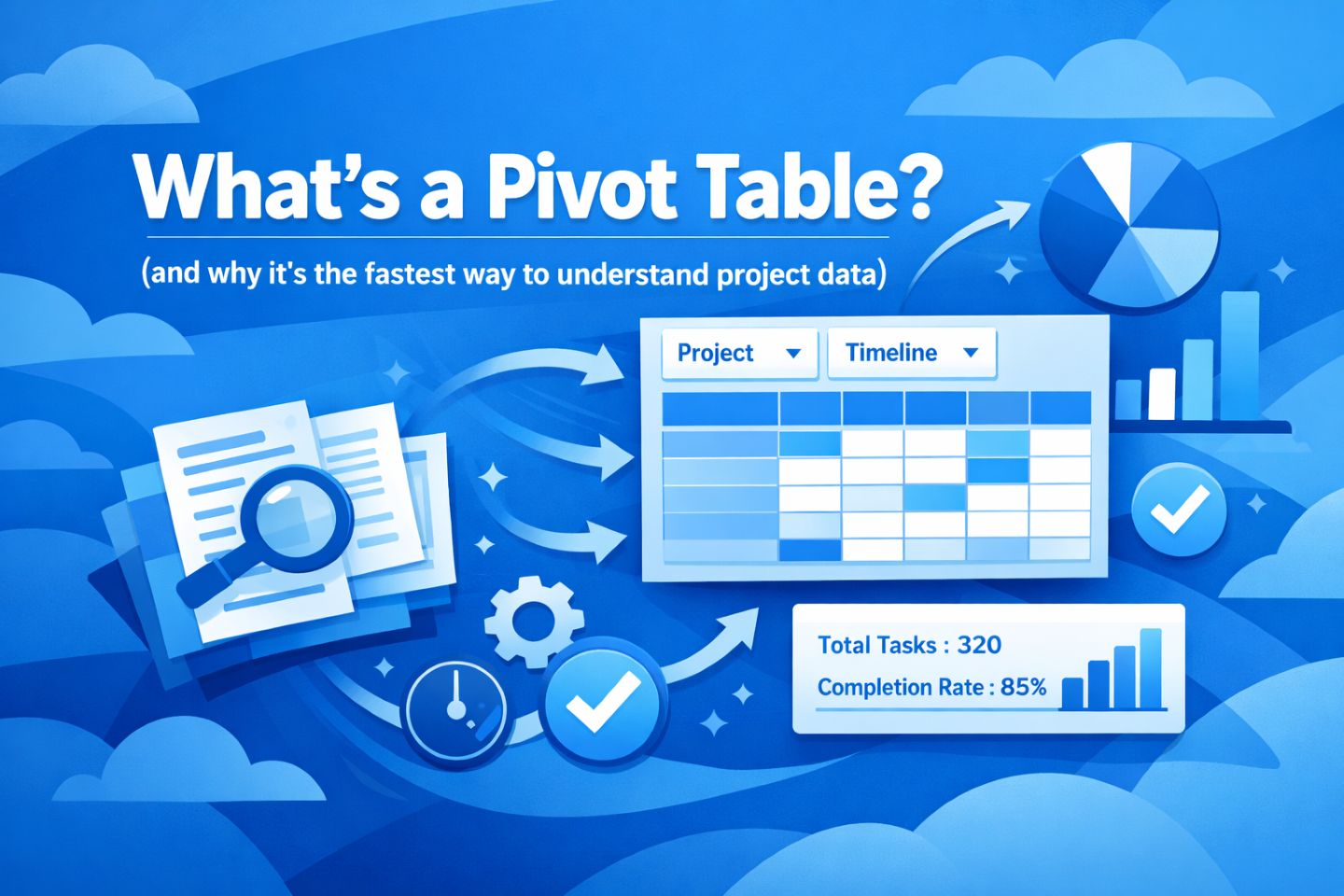
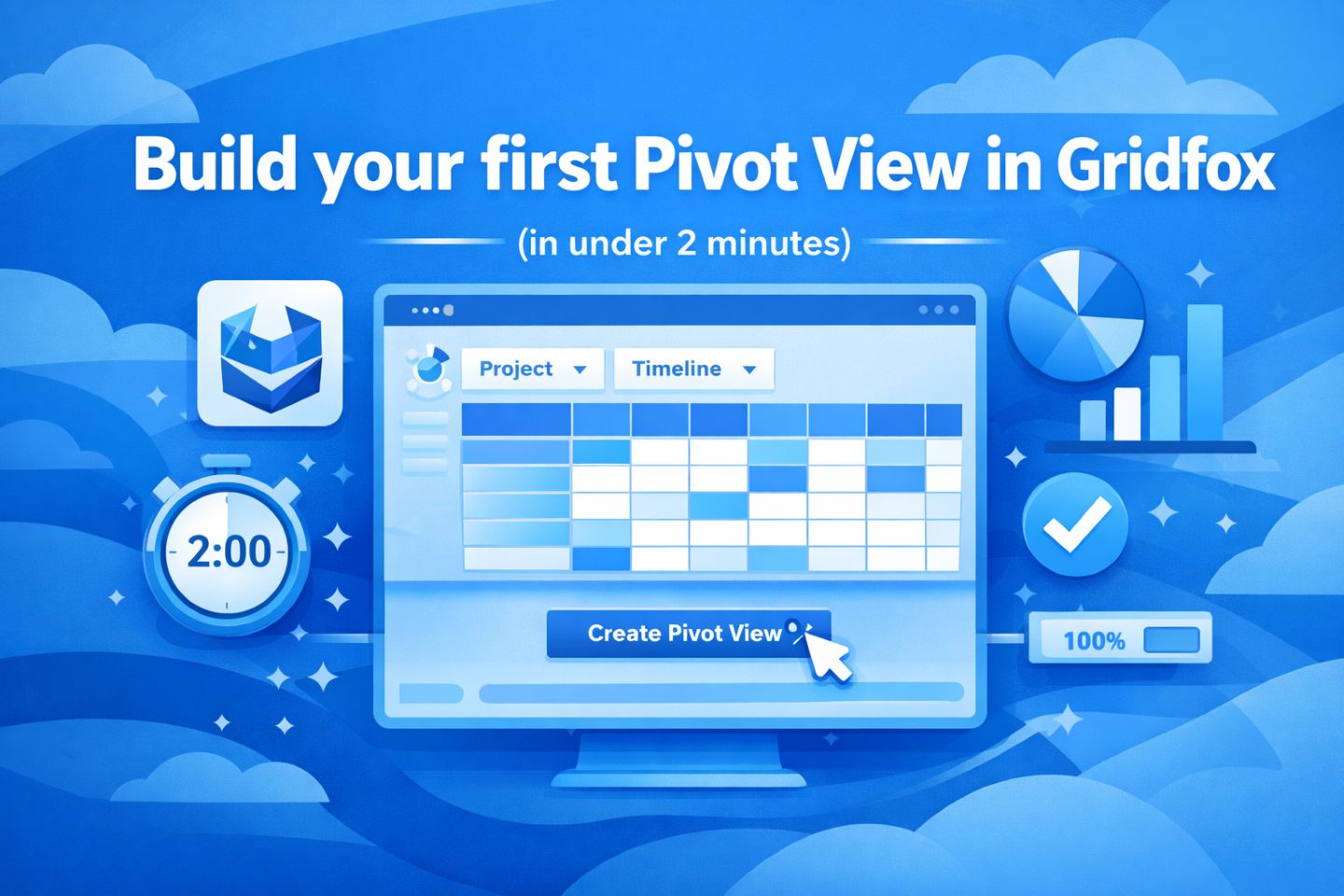
This wraps up our three-part series on mastering Pivot View in Gridfox. We started by explaining what a pivot table actually is, walked through building your first view, and now you have a library of questions to ask your data immediately.
The best way to learn is to click around. Open up a project, switch to Pivot View, and try one of the setups above. You can’t break your data just by looking at it, so don’t be afraid to drill down until you find the answers you need.
If you do get stuck, we’re always around to help, just email us at support@gridfox.com
Happy pivoting!



 GRIDFOX